
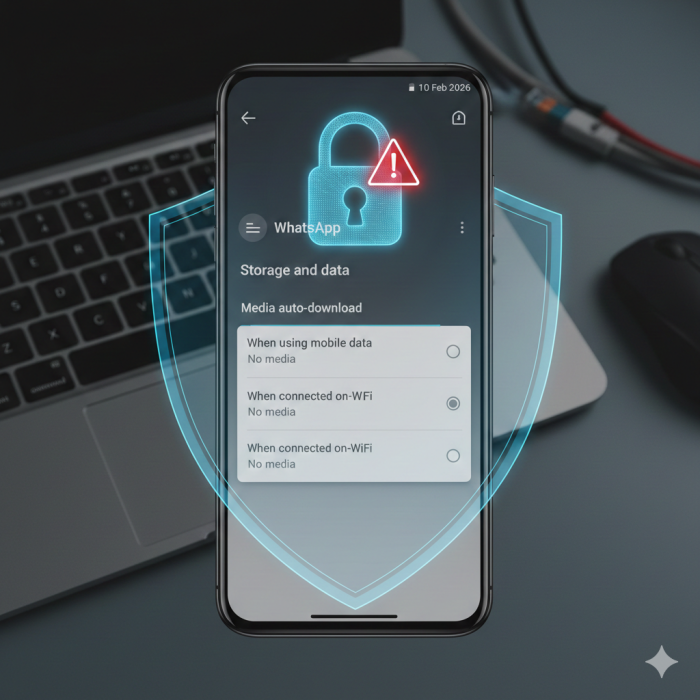
Recent findings from Google’s Project Zero have highlighted a significant security flaw in WhatsApp that could allow malicious files to compromise your device without any interaction from you. This “zero-click” vulnerability is particularly dangerous because it bypasses the usual requirement of clicking a link or opening an attachment.
What is the Risk?
The vulnerability (tracked as CVE-2025-55177) exploits how WhatsApp handles media files in group chats. Attackers can create a group, add users, and send a specially crafted media file. If your settings are set to “auto-download,” the malicious file lands on your phone instantly, potentially allowing remote code execution or the installation of spyware.
While Meta (WhatsApp’s parent company) has issued server-side updates, security experts—including those at Google and Malwarebytes—note that these fixes may only partially mitigate the risk. Manual intervention is currently the most effective way to ensure your data remains secure.
Action Required: Disable Auto-Downloads
To protect your device, we recommend immediately disabling automatic media downloads. This ensures that no file is saved to your device unless you specifically choose to download it.
How to update your settings (Android & iOS):
- Open WhatsApp Settings: Tap the three dots (Android) or the “Settings” gear (iOS).
- Navigate to Storage and Data: Locate the “Media auto-download” section.
- Deselect All Media: You will see three categories: When using mobile data, When connected on Wi-Fi, and When roaming.
- Turn Off Everything: Open each category and uncheck Photos, Audio, Videos, and Documents. Each should now display “No media” or “Off“.
Enhanced Privacy Steps
For those seeking a higher level of security, we suggest two additional configurations:
- Restrict Group Invites: Go to Settings > Privacy > Groups and change the setting to “My Contacts”. This prevents unknown actors from adding you to malicious groups.
- Enable Advanced Privacy: Under Settings > Privacy > Advanced, you can enable “Protect IP Address in Calls” and check for the new “Strict Account Settings” (if available on your version), which further restricts how the app processes data from unknown senders.
As your IT partners, we strongly advise all clients to verify these settings today. Staying proactive with these minor adjustments is a vital step in defending against increasingly sophisticated mobile threats.